
A Shopify development store is a powerful, free testing environment that enables developers, agencies, and Shopify Partners to build, test, and perfect e-commerce stores before launching them live. Whether you’re creating a store for a client, testing a custom theme, or developing a new app, development stores provide the sandbox you need without any upfront costs.
This comprehensive guide covers everything you need to know about Shopify development stores, from setup to transfer, including limitations, testing strategies, and best practices that will help you maximize this essential tool.
What Is a Shopify Development Store?
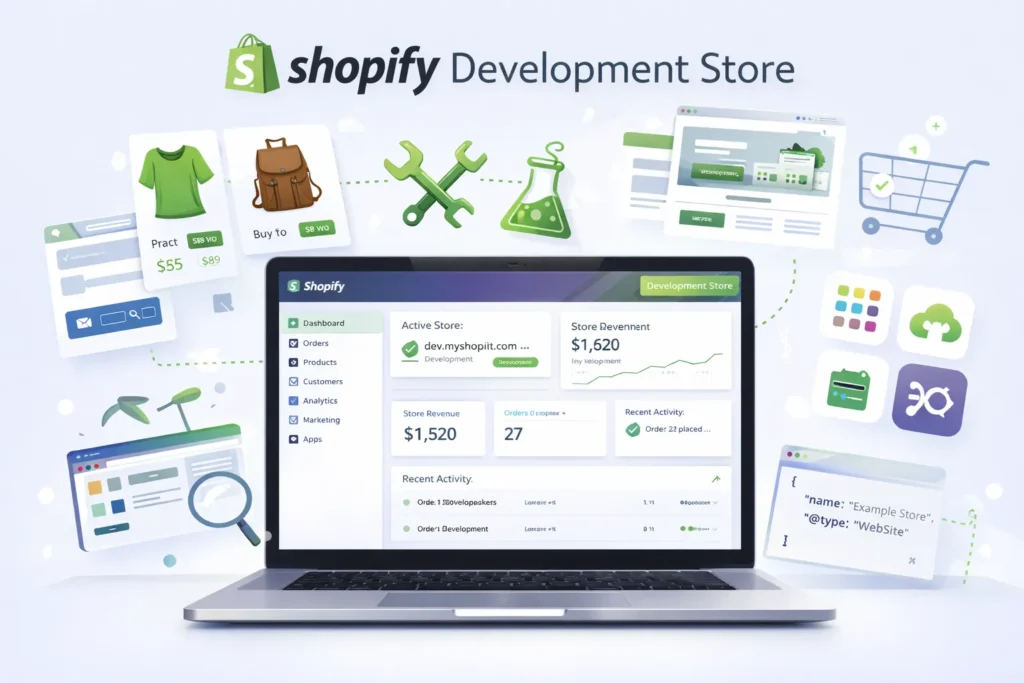
A Shopify Development store is a free, fully functional Shopify account available exclusively to Shopify Partners. It provides access to nearly all Shopify features without requiring a paid subscription, making it the perfect environment for building and testing before going live.
Development stores serve multiple critical purposes in the Shopify ecosystem. They allow you to build complete e-commerce stores for clients, test custom themes and applications, experiment with design elements and features, demonstrate your work to potential clients, and train team members on the Shopify platform.
Unlike regular Shopify stores, development stores remain free indefinitely as long as they aren’t transferred to a client or upgraded to a paid plan. This makes them invaluable for ongoing testing and development work.
Types of Shopify Development Stores
Understanding the different types of Website Development stores helps you choose the right option for your specific needs.
Standard Development Store
A standard development store is the most common type, ideal for general development work, client projects, and theme testing. It includes all features from the Shopify Advanced plan, allows unlimited products and collections, and provides full theme customization capabilities. You can create as many standard development stores as needed under your Partner account.
Client Transfer Store
Client transfer stores are specifically designed for building stores that will be handed off to clients. These stores enable you to build a complete store for a client, transfer ownership seamlessly, earn recurring commission revenue, and maintain a connection to the store after transfer. When you transfer a client transfer store to your client and they choose a paid plan, you receive ongoing commission payments.
Development Store with Preview Features
These stores give you early access to beta features and upcoming Shopify updates. They’re perfect for testing new Shopify features before official release, staying ahead of platform changes, and providing cutting-edge solutions to clients. However, stores with preview features enabled cannot be transferred to clients and are meant strictly for testing purposes.
Test Data Store
Shopify allows you to create development stores pre-populated with generated test data, including sample products, orders, customers, and collections. This is ideal for quickly testing apps and features without manual data entry, demonstrating store functionality, and running realistic scenarios.
Key Features and Capabilities
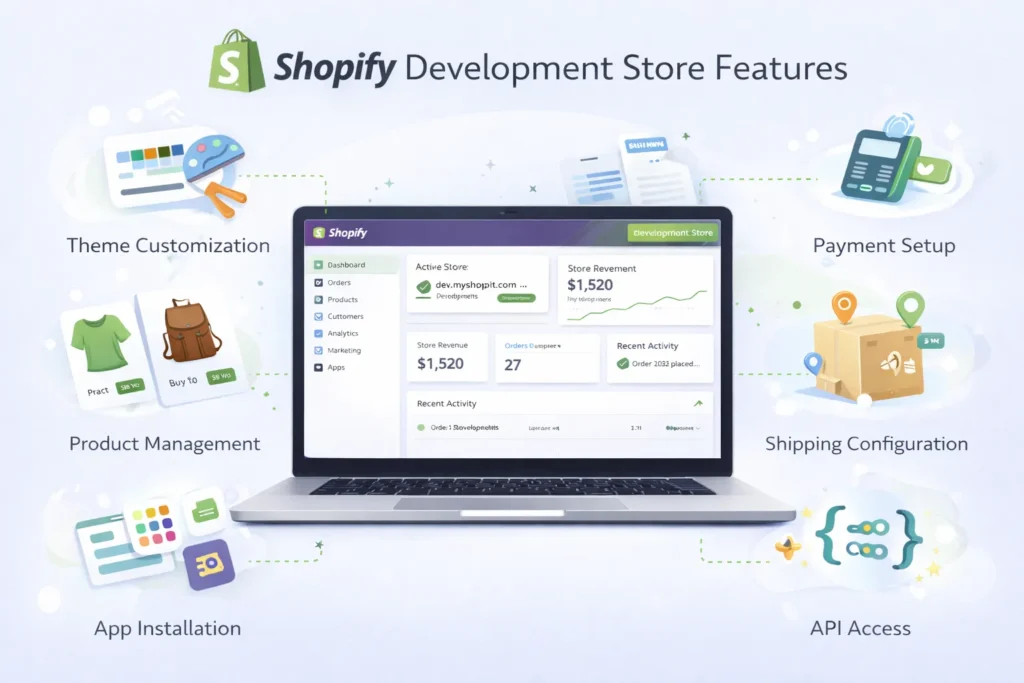
Shopify development stores provide comprehensive access to platform features, allowing you to create production-ready stores.
Development stores include full access to theme customization with the ability to edit Liquid code, CSS, and JavaScript. You can add unlimited products and organize them with collections, tags, and variants. The stores support custom domain assignment (though domains remain password-protected until transfer) and provide access to Shopify’s admin dashboard with all standard features.
You can configure payment gateways in test mode, set up shipping zones and rates, create discount codes and automatic discounts, and add customer accounts and user roles. The stores include inventory management and tracking, order processing simulation, and checkout customization options.
For developers, development stores offer access to Shopify APIs, webhooks, and GraphQL, the ability to install custom apps and private apps, and theme development with Theme Kit or Shopify CLI. You can also test app extensions and theme blocks, implement custom checkout modifications, and use metafields and custom fields.
Critical Limitations and Restrictions
Understanding development store limitations is essential for planning your workflow and avoiding surprises during the development process.
Payment and Transaction Limitations
Development stores cannot process real payment transactions. You can only test orders using the Bogus Payment Gateway provided by Shopify or by enabling test mode for supported payment providers. This means no real money can be exchanged through a development store, preventing you from testing actual payment processing fees or real-world payment issues.
App Installation Restrictions
One of the most significant limitations is that you can only install free apps and partner-friendly apps on development stores. Paid apps that aren’t marked as partner-friendly cannot be installed unless you upgrade to a paid plan. This can limit your ability to test certain premium functionalities before client handoff.
To check if an app is partner-friendly, visit the app listing in the Shopify App Store and look for the “Partner-friendly” designation, or contact the app developer directly to inquire about Website Development store compatibility.
Store Access and Visibility
Development stores remain password-protected at all times until they’re transferred to a client or upgraded to a paid plan. You cannot remove the password page, meaning the store cannot be publicly accessible for testing with real users or search engines. This affects your ability to test SEO, run live user testing, or demonstrate the store to stakeholders who don’t have the password.
Custom App Limitations
Each development store is limited to a maximum of 10 custom apps (private apps). If you need to test more than 10 different custom applications, you’ll need to delete existing ones or create additional development stores.
Non-Transferable Features
Certain features make a development store non-transferable to clients. If you enable developer preview features or populate your store with Shopify-generated test data, you cannot transfer that store to a client. You’ll need to rebuild the store or create a new one without these features for client projects.
Theme Template Limits
While you can create unlimited pages, Shopify limits each theme to a maximum of 1,000 JSON templates. This constraint applies to the number of unique page layouts you can design within a single theme.
How to Set Up a Shopify Development Store
Creating a development store is straightforward, but following the proper steps ensures a smooth setup process.
Step 1: Become a Shopify Partner
Before you can create development stores, you must join the Shopify Partner Program. Visit the Shopify Partners website and click “Join now” or “Become a Partner.” Complete the signup form with your business information, including your name, email address, and business details. Verify your email address through the confirmation link sent to your inbox, and complete your partner profile with additional information about your services and expertise.
The Shopify Partner Program is completely free to join and provides access to numerous benefits beyond developing stores, including commission opportunities, educational resources, and partner support.
Step 2: Access Your Partner Dashboard
Once your partner account is approved, log in to your Partner Dashboard at partners.shopify.com. The dashboard serves as your central hub for managing all your development stores, client relationships, apps, and commission earnings.
Familiarize yourself with the dashboard layout, including the Stores section where you’ll manage development stores, the Apps section for app development projects, the Themes section for theme development, and the Analytics section showing your earnings and referrals.
Step 3: Create a Development Store
From your Partner Dashboard, navigate to the “Stores” section in the left sidebar. Click the “Add store” button and select “Create development store” from the dropdown menu. Alternatively, you may see “Create client transfer store” if you’re specifically building for a client.
On the store creation page, enter a unique store name. This will form your myshopify.com URL (e.g., storename.myshopify.com). Choose your development store purpose from the available options: creating a store for a client, testing an app or theme, or building a custom store.
Select whether you want to start with a blank store or use pre-generated test data. For most client projects, starting with a blank store is recommended. For app or feature testing, test data can save considerable time.
Indicate if you want to enable developer preview features. Remember that enabling this option makes the store non-transferable to clients.
Step 4: Configure Store Settings
After creating your development store, click “Log in” to access the store’s admin dashboard. Begin by configuring essential settings in the Settings menu.
Set your store’s basic information, including store name, contact email, and timezone. Configure your store address, which is required for tax calculations and shipping setup. Choose your currency and set up applicable tax settings for your region.
Upload your logo and configure your store’s branding elements. Set up payment providers in test mode, with the Bogus Payment Gateway being the most straightforward option for testing. Configure shipping zones and rates based on where you plan to ship products.
Step 5: Customize Your Store Design
Navigate to Online Store > Themes in your admin dashboard. You can choose a free theme from Shopify’s theme library, upload a custom theme you’ve developed, or customize an existing theme using the theme editor.
Use the theme customization interface to adjust colors, fonts, and layout options. Add your logo, configure homepage sections, and set up navigation menus. If you’re developing custom functionality, you can edit theme code directly through the code editor.
Step 6: Add Products and Content
Begin populating your store with products by going to Products > Add product. Create detailed product listings with titles, descriptions, pricing, and images. Organize products into collections for better navigation and browsing.
Add essential pages like About Us, Contact, Privacy Policy, and Terms of Service through Online Store > Pages. Configure your blog if content marketing is part of the strategy.
Step 7: Install Apps and Extensions
Visit the Shopify App Store to find apps that enhance your store’s functionality. Remember to check that apps are either free or partner-friendly before attempting installation. Install apps for email marketing, SEO optimization, inventory management, customer reviews, or any other required functionality.
Configure each app according to your store’s needs and test functionality thoroughly.
Step 8: Test Your Store
Before transferring to a client or going live, conduct comprehensive testing using the Bogus Payment Gateway to process test orders. Test the complete customer journey from browsing to checkout, verify that all forms work correctly, and check email notifications and confirmations.
Test your store on multiple devices (desktop, tablet, mobile) and across different browsers (Chrome, Firefox, Safari, Edge). Verify that all links work, images load properly, and navigation is intuitive.
Development Store vs. Production Store vs. Staging
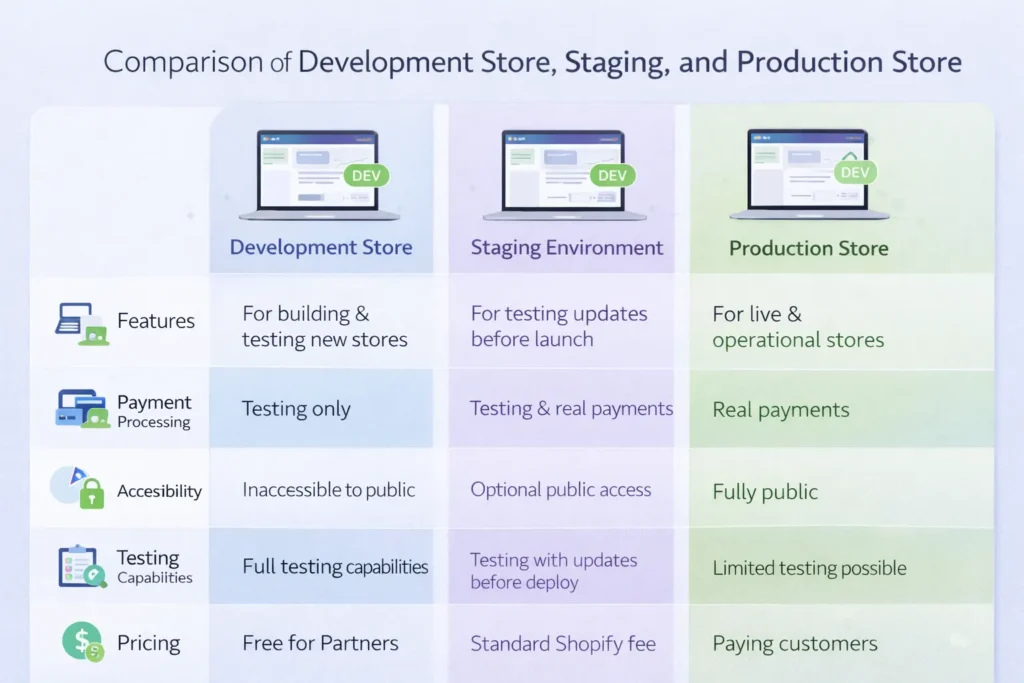
Understanding the differences between development, staging, and production environments helps you manage your workflow effectively.
Development Store
A development store is a free Shopify account for partners that’s perfect for initial building and testing. It includes access to most Shopify features and remains password-protected until transfer. Development stores cannot process real payments and have limitations on paid app installations. The primary use is for building new stores from scratch, testing themes and apps, and client demonstrations.
Staging Environment
A staging environment is a copy of a live production store used for testing changes before deploying to the live site. It requires a separate paid Shopify plan and mirrors your production store’s data and configuration. Staging is ideal for testing updates to existing stores, previewing major changes, and training staff without affecting the live store. Some third-party apps provide staging functionality, or you can manually duplicate stores.
Production Store
A production store is your live, customer-facing e-commerce store that processes real transactions and serves actual customers. It requires a paid Shopify subscription plan and has no restrictions on apps or features. Production stores are publicly accessible, SEO-indexed, and generate real revenue.
When to Use Each Environment
Use development stores when starting new projects from scratch, building stores for clients, or testing new concepts and ideas. Try staging environments when updating existing live stores, testing major redesigns, or implementing significant feature changes. Use production stores for all customer-facing activities and real business operations.
Testing Strategies and Best Practices
Thorough testing in your development store ensures a smooth launch and positive user experience.
Payment Gateway Testing
The Bogus Payment Gateway is your primary tool for testing checkout and payment processing. To enable it, go to Settings > Payments, scroll to “Bogus Gateway,” and click “Activate.” This gateway simulates various payment scenarios using specific test card numbers.
Use these test scenarios: card number “1” processes successful payments, card number “2” triggers declined transactions, card number “3” simulates payment exceptions and errors. Test the complete checkout flow with different scenarios to ensure proper error handling and success messaging.
Order Processing Workflow
Create test orders as customers would, proceeding through the entire checkout process. After placing orders, practice fulfilling them through the admin dashboard. Test partial fulfillments, refunds, and order cancellations. Verify that email notifications are sent correctly at each order stage.
Test abandoned cart recovery by adding items to the cart and leaving without completing the purchase. Check that inventory levels update correctly after orders are placed and fulfilled.
Theme and Design Testing
Test your store’s design across all device types and screen sizes. Shopify’s theme editor provides a preview mode for different devices, but also tests on actual devices when possible. Check that all images load at appropriate sizes and resolution, text remains readable at all sizes, and buttons and navigation elements are easily clickable on mobile devices.
Test your store in different browsers to ensure consistent appearance and functionality. Pay special attention to Chrome, Safari, Firefox, and Edge, as these represent the majority of users.
App and Feature Testing
After installing apps, test all their features thoroughly in the development environment. Verify that apps don’t conflict with each other or cause performance issues. Check that app integrations work correctly with your theme and other installed apps.
Test any custom code or modifications you’ve implemented. Use browser developer tools to check for JavaScript errors, broken links, or missing assets.
Performance Testing
Page speed significantly impacts Conversion Rate Optimization and user experience. Use tools like Google PageSpeed Insights, GTmetrix, or Shopify’s built-in analytics to measure your store’s performance.
Optimize images by compressing them and using appropriate formats. Minimize the number of apps installed, as each app can add loading time. Review and optimize custom code for efficiency.
Accessibility Testing
Ensure your store is accessible to users with disabilities by testing keyboard navigation, screen reader compatibility, and sufficient color contrast. Use tools like WAVE or aXe to identify accessibility issues.
SEO Preparation
While development stores cannot be indexed by search engines due to password protection, you should still prepare SEO Optimization elements during development. Configure page titles, meta descriptions, alt text for images, URL structures, and heading hierarchies. Set up redirects if migrating from an existing store and ensure your sitemap will be properly generated.
App Installation and Partner-Friendly Apps
Understanding app compatibility with development stores is crucial for planning your build.
What Are Partner-Friendly Apps?
Partner-friendly apps are Shopify apps that can be installed on development stores without requiring payment. App developers voluntarily make their apps partner-friendly to enable testing and development work. These apps typically offer full functionality on development stores or may have specific partner testing features.
How to Identify Partner-Friendly Apps
When browsing the Shopify App Store, look for the “This app is partner-friendly” badge on app listing pages. You can also filter app searches to show only partner-friendly options. If you’re unsure whether an app is partner-friendly, attempt installation on your development store or contact the app developer directly.
Categories of Partner-Friendly Apps
Many popular apps across various categories offer partner-friendly versions, including email marketing platforms like Klaviyo and Omnisend, SEO tools like Plug in SEO Optimization and SEO Manager, review apps like Judge.me and Loox, inventory management solutions, and shipping and fulfillment tools.
Free apps are automatically installable on development stores, as the partner-friendly designation primarily applies to paid apps.
Workarounds for Non-Partner-Friendly Apps
If a client requires a paid app that isn’t partner-friendly, you have several options. You can request that the client purchase the app and provide you with collaborator access to their store, coordinate with the app developer to request temporary testing access, use alternative partner-friendly apps for development and plan to switch after transfer, or upgrade the development store to a paid plan temporarily if absolutely necessary.
Custom Apps and Private Apps
As an alternative to third-party apps, you can develop custom apps specifically for your development store or client. Custom apps don’t have the same restrictions as public apps and can be installed freely on development stores. However, remember the 10 custom app limit per development store.
Transferring Development Stores to Clients
The transfer process is where your development work converts into client value and potential recurring revenue.
Pre-Transfer Preparation Checklist
Before initiating a transfer, ensure your store is completely ready. Remove any test products, orders, or customer data unless requested by the client. Verify that all pages, products, and collections are finalized and approved. Confirm all apps are properly configured and that the client understands any ongoing app costs.
Check that payment gateways are set up correctly in test mode and ready for the client to activate. Ensure shipping settings reflect the client’s actual business needs. Review and finalize tax settings for the client’s jurisdiction.
Create comprehensive documentation, including admin credentials, app instructions, theme customization guide, and any custom functionality explanations. Prepare training materials or schedule training sessions if included in your service package.
The Transfer Process
From your Partner Dashboard, navigate to the Stores section and locate the development store you want to transfer. Click “Actions” next to the store name and select “Transfer ownership” or follow the specific transfer workflow in the dashboard.
Enter the client’s email address. They’ll receive an invitation to accept ownership of the store. The client must have or create a Shopify account to accept the transfer. Once they accept, they’ll be prompted to select a Shopify pricing plan and enter payment information.
After the client selects a paid plan, the store becomes fully functional with password protection removed and payment processing enabled. Real transactions can now be processed, and all features become unrestricted.
Post-Transfer Considerations
Once transferred, you no longer have automatic access to the store unless the client grants you collaborator access. Discuss ongoing support arrangements with your client before transfer and establish whether you’ll maintain access for updates, maintenance, or support.
If the client chooses a paid Shopify plan after you transfer the store, you earn recurring commission revenue as a Shopify Partner. Commission rates vary by plan and region, but this passive income can become significant as you build more client stores.
What Cannot Be Transferred?
Stores with developer preview features enabled cannot be transferred. Stores populated with Shopify’s generated test data cannot be transferred. In these cases, you’ll need to create a new development store without these features and rebuild the store for client transfer.
Transfer Mistakes to Avoid
Don’t transfer stores with test data still present, as this creates confusion for clients. Avoid transferring before thorough testing, leading to issues when the store goes live. Ensure you’ve documented everything properly so the client can manage their store effectively. Communicate clearly about ongoing costs, including app subscriptions, themes (if premium), and Shopify plan pricing.
Advanced Development and Customization
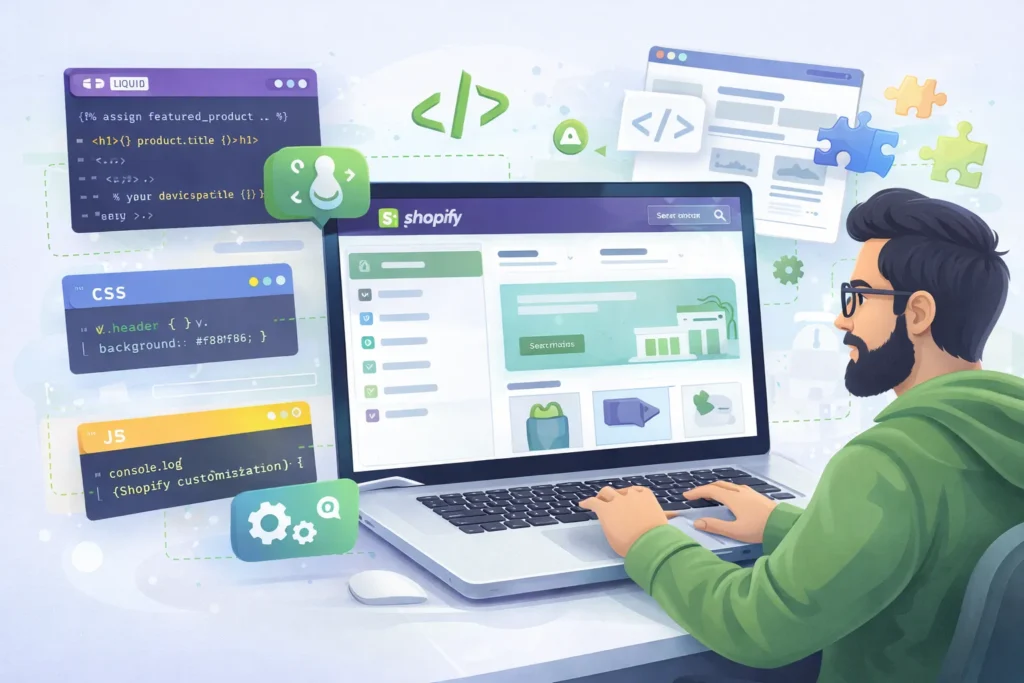
For developers looking to create sophisticated solutions, development stores support advanced customization.
Theme Development with Code Access
Development stores provide full access to theme code through the online code editor orby using local development tools. You can edit Liquid template files, modify CSS stylesheets, add custom JavaScript, and create new templates and sections.
For professional theme development, use Shopify CLI (Command Line Interface) or the legacy Theme Kit. These tools enable local development with version control, automatic uploading of changes to your development store, theme preview and testing, and collaboration with multiple developers.
Working with Shopify APIs
Development stores provide access to Shopify’s comprehensive APIs, including the Admin REST API, Admin GraphQL API, Storefront API for headless commerce, and various webhook subscriptions for real-time updates.
Use APIs to create custom integrations with external systems, automate store management tasks, build custom admin interfaces, and develop sophisticated apps with deep Shopify integration.
Custom App Development
Development stores are essential for custom app development. Create custom apps to add unique functionality not available in public apps, integrate with proprietary business systems, customize the checkout experience, and extend admin functionality.
Test your app thoroughly in the development environment before deploying to production stores. Use the app’s development configuration for testing and create a separate production configuration for live use.
Metafields and Custom Data
Metafields allow you to add custom data fields to products, collections, customers, orders, and other Shopify objects. Use metafields to store additional product specifications, custom customer data, or unique order information that isn’t available in standard Shopify fields.
Development stores let you test metafield configurations and ensure your theme or app properly displays and uses custom data.
Checkout Customization
Shopify Plus development stores provide access to checkout customization, including custom checkout scripts, checkout extensions, and branded checkout experiences. While standard development stores don’t include all Plus features, you can still prepare and test many customizations.
Version Control and Collaboration
Implement version control using Git to track theme changes, collaborate with multiple developers, and maintain backup versions of your code. Popular workflows include using GitHub or GitLab for theme repositories, maintaining separate branches for development and production, and implementing code review processes before deploying changes.
Troubleshooting Common Issues
Even experienced developers encounter challenges when working with development stores. Here are solutions to common problems.
Login and Access Problems
If you can’t access your development store, verify you’re logging in through your Partner Dashboard rather than directly. Check that your partner account is active and in good standing. If you’ve forgotten the store password, reset it through the Partner Dashboard. Ensure you have the correct permissions if multiple partners collaborate on the same store.
App Installation Failures
If an app won’t install, confirm it’s either free or partner-friendly. Check that you haven’t reached the 10 custom app limit. Verify your development store meets the app’s requirements. Some apps require specific Shopify plan features that may not be available on development stores. Contact the app developer for partner testing access if needed.
Payment Gateway Testing Issues
If the Bogus Payment Gateway isn’t appearing, ensure you’ve activated it in Settings > Payments. Verify you’re using the correct test card numbers (1 for success, 2 for failure). Clear your browser cache and cookies if orders aren’t processing. Check that your checkout settings are properly configured.
Theme Loading Errors
If your theme isn’t loading correctly, check the browser console for JavaScript errors. Verify all theme files are properly uploaded without corruption. Test with a default Shopify theme to isolate whether issues are theme-specific. Review recent code changes that may have introduced bugs.
Transfer Blocking Problems
If you cannot transfer a store, verify developer preview is disabled. Ensure generated test data has been removed. Check that all required store settings are completed. Confirm the client’s email address is correct and they can receive the invitation.
Performance Slowdowns
If your development store is loading slowly, reduce the number of installed apps. Optimize images to smaller file sizes. Review custom code for inefficient scripts or queries. Test with developer tools to identify specific performance bottlenecks.
Data Loss or Corruption
Regularly export your store data as backups. Use theme versioning to preserve code changes. Document your store configuration and settings. If data is corrupted, you may need to recreate products, collections, or other content from backups.
Security and Data Privacy Best Practices
Protecting client data and maintaining security is paramount when working with development stores.
Password Protection and Access Control
Development stores are automatically password-protected, which provides basic security. However, manage this password carefully and only share it with authorized team members. Change the password regularly, especially if team members leave or after sharing with clients for review purposes.
Use unique, strong passwords that combine uppercase and lowercase letters, numbers, and special characters. Consider using a password manager to securely store and share credentials with your team.
Secure Data Handling
When working with client data, even in development environments, follow data protection best practices. Don’t use real customer data in development stores without explicit permission and anonymization. Delete test customer and order data before transferring stores to clients. Comply with GDPR, CCPA, and other relevant data privacy regulations.
If you must import real data for testing purposes, anonymize personal information including names, email addresses, phone numbers, and addresses. Use tools or scripts to systematically replace sensitive data with realistic but fake information.
SSL and HTTPS
All Shopify stores, including development stores, automatically use SSL/HTTPS encryption for secure data transmission. Verify that your custom domain (if configured) properly redirects to HTTPS. Ensure any external resources loaded in your theme also use HTTPS to avoid mixed content warnings.
Collaborator Access Management
When working with teams, use Shopify’s collaborator access features to grant appropriate permissions. Assign the minimum necessary permissions for each team member based on their role. Regularly audit collaborator access and remove team members who no longer need access. Document who has access to which stores for accountability.
Secure Development Practices
When developing custom code or apps, follow security best practices. Validate and sanitize all user inputs to prevent injection attacks. Use Shopify’s API authentication methods correctly. Never hard-code sensitive credentials like API keys in theme or app code. Store configuration and secrets in environment variables or secure configuration files.
Client Data Protection During Transfer
Before transferring a store, discuss data handling with your client. Clarify who owns the data and how it should be managed. Provide the client with documentation about security settings they should configure after taking ownership. Recommend that clients enable two-factor authentication on their Shopify account for additional security.
Performance Optimization for Development Stores
Optimizing your development store ensures a fast, responsive experience when it goes live.
Image Optimization
Images often constitute the largest portion of page weight. Compress images before uploading using tools like TinyPNG, ImageOptim, or Shopify’s built-in image optimization. Use appropriate image formats: JPEG for photographs, PNG for images requiring transparency, and WebP for modern browsers supporting this efficient format.
Implement responsive images that load appropriate sizes based on device screen dimensions. Use Shopify’s image filters in Liquid to generate properly sized images. Consider lazy loading for images below the fold to improve initial page load times.
Code Optimization
Minimize CSS and JavaScript files to reduce file size. Remove unused CSS and JavaScript code. Combine multiple CSS or JavaScript files when possible to reduce HTTP requests. Use asynchronous loading for non-critical JavaScript. Optimize Liquid code by reducing unnecessary loops and database queries.
App Management
Every installed app adds code and external requests to your store. Regularly audit installed apps and remove those that aren’t essential. Evaluate whether custom code could replace certain apps more efficiently. Check app performance impact using browser developer tools and consider alternatives if apps significantly slow your store.
Caching and Content Delivery
Shopify automatically handles caching and uses a global content delivery network (CDN) for asset delivery. Ensure you’re leveraging these features by using Shopify-hosted images and assets rather than external sources when possible. Configure proper cache headers for any custom assets.
Database and Query Optimization
Optimize collection and product queries in your theme code. Use pagination for large product collections to avoid loading excessive data on single pages. Limit the number of related products or recommendations displayed. Consider using Ajax loading for secondary content that doesn’t need to be immediately visible.
Performance Testing Tools
Use Google PageSpeed Insights to analyze performance and receive optimization recommendations. Test with GTmetrix for detailed performance reports and waterfall analysis. Monitor Shopify’s built-in analytics for load time reports. Use browser developer tools to identify specific performance bottlenecks.
Performance Budget
Establish a performance budget with specific goals: target page load time under 3 seconds on mobile networks, total page weight under 2MB, minimize render-blocking resources, and achieve high scores on Core Web Vitals metrics. Regularly test against these benchmarks during development.
Shopify Partner Program Benefits
Being a Shopify Partner offers advantages beyond just free development stores.
Recurring Revenue Opportunities
When you transfer development stores to clients who choose paid Shopify plans, you earn ongoing commission revenue. Commission rates typically range from 10-20% of the client’s monthly subscription fee, depending on the plan and your region. This creates passive income that grows as you build more stores.
Development revenue is just one income stream. Partners also earn referral commissions for merchant referrals, app revenue from published apps in the Shopify App Store, theme revenue from themes published in the theme store, and service revenue from consulting, design, and development work.
Educational Resources
Shopify Partners receive access to extensive educational resources including Shopify Partner Academy courses covering development, design, and business topics. Detailed developer documentation and API references keep you informed of webinars, workshops, and training events. The Partner community forum connects you with other partners and exclusive content about Shopify updates and best practices.
Partner Support
As a partner, you have access to dedicated support channels separate from standard merchant support. Partners can reach specialized teams who understand development and technical questions. Priority support for critical issues affecting your client work and access to Partner Success Managers for established partners round out the support offerings.
Marketing and Growth Tools
The Partner Dashboard provides analytics showing your earnings, referrals, and store performance. Access co-marketing opportunities and listing in Shopify’s Expert Marketplace connects you with potential clients seeking Shopify services. Shopify provides resources and tools to help you grow your partner business.
Early Access to Features
Partners often receive early access to new Shopify features and platform updates through developer preview programs. This allows you to stay ahead of changes, provide cutting-edge solutions to clients, and influence platform development through feedback.
Migration and Backup Strategies
Protecting your work and enabling smooth transitions requires proper backup and migration planning.
Theme Backup Procedures
Always maintain backups of your theme code. Download theme files regularly through the admin interface or use Theme Kit/Shopify CLI to maintain local copies. Use version control systems like Git to track changes and enable rollback to previous versions. Store backups in multiple locations, including local storage, cloud storage services, and code repositories.
Before making significant theme changes, duplicate the theme to create a restore point. Shopify allows multiple theme versions to be saved, making it easy to revert if needed.
Exporting Store Data
Shopify provides data export functionality for various store elements. Export products via CSV files from the Products section. Export customer data from the Customers section. Download order history from the Orders section. Export discount codes, gift cards, and other data as needed.
While Shopify doesn’t offer a complete store export, you can use third-party apps designed for data migration and backup. Popular options include Rewind for automatic backups, Matrixify for comprehensive data export/import, and Transporter for data migration from other platforms.
App Settings and Configuration
Document all app configurations, as these typically cannot be exported directly. Take screenshots of app settings, save configuration details in documentation, and maintain lists of installed apps with their purposes. This documentation proves invaluable when rebuilding stores or transferring setups to new environments.
Content and Asset Management
Download all store assets, including product images, theme assets like logos and icons, uploaded files and documents, and custom fonts or resources. Organize these files systematically in your local storage with clear naming conventions and folder structures.
Metafield Backup
If you’ve used metafields extensively, ensure you can export and reimport this custom data. Apps like Metafields Editor often provide export functionality. Document your metafield structure, including namespaces, keys, and value types for reference.
Pre-Transfer Backup
Before transferring a development store to a client, create a complete backup including theme files, exported data CSVs, app configuration documentation, and custom code or integrations. This protects against data loss during transfer and provides a reference if questions arise after handoff.
Disaster Recovery Planning
Develop a disaster recovery plan for catastrophic scenarios. Maintain current backups of all critical data and code, document restoration procedures, test recovery processes periodically, and communicate backup and recovery capabilities to clients as part of your service offering.
Real-World Use Cases and Success Stories
Understanding how different professionals use development stores provides practical insights and inspiration.
Freelance Developer Building Client Stores
Sarah, a freelance Shopify developer, uses client transfer stores for every project. She creates a development store at project start, builds the complete store according to client specifications, presents the finished store for client review and approval, and transfers ownership once approved and final payment is received. This workflow ensures she maintains control during development and provides a clean handoff process. Her recurring commissions now provide steady passive income alongside project fees.
Agency Managing Multiple Client Projects
TechCommerce Agency manages dozens of simultaneous Shopify projects using development stores. They maintain a library of starter stores with common configurations, clone and customize these starters for new projects, use standardized testing procedures across all builds, and track projects through the Partner Dashboard. This systematic approach enables their team of 15 developers to work efficiently while maintaining quality standards.
Theme Developer Testing New Themes
Marcus develops premium Shopify themes for sale in the theme store. He uses development stores to build and test each new theme, create demo stores showcasing theme features, test compatibility with popular apps, and gather feedback from beta testers. Development stores allow him to perfect themes before submission and provide realistic demos to potential customers.
App Developer Building Custom Applications
DevTools Inc. creates custom Shopify apps for enterprise clients. They use development stores to develop and test app functionality, demonstrate app capabilities to potential clients, verify integrations with various Shopify features, and test app performance under different conditions. Having unlimited development stores enables the parallel development of multiple apps simultaneously.
E-commerce Consultant Creating Client Demonstrations
Linda, an e-commerce consultant, maintains several demonstration stores showcasing different industry solutions. She uses these stores during client consultations to illustrate best practices, demonstrate specific features or integrations, provide realistic examples for different business models, and help clients envision their own store potential. These demo stores serve as powerful sales tools that convert consultations into projects.
Staying Current with Shopify Updates
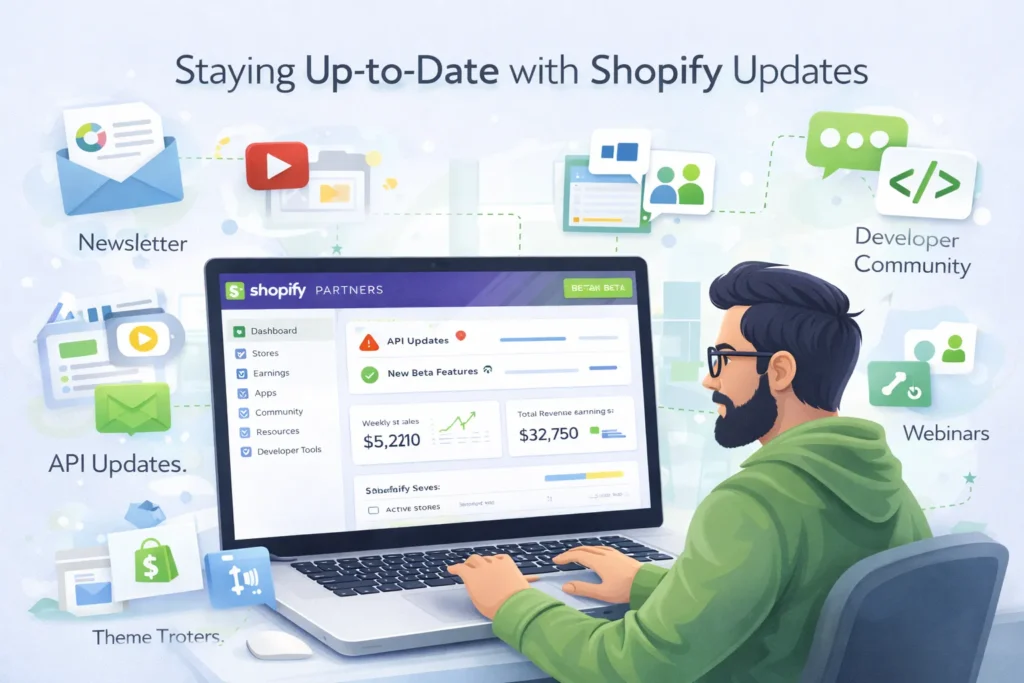
The Shopify platform evolves constantly with new features, API changes, and best practices.
Following Shopify Announcements
Stay informed about platform changes by subscribing to the Shopify Partner Newsletter, reading the Shopify Changelog for technical updates, following Shopify’s official blog and social media, and joining the Shopify Community forums. Subscribe to developer-focused Shopify channels on YouTube and attend or watch recordings of Shopify Unite, the annual partner and developer conference.
Testing New Features
Use development stores with developer preview enabled to test new features before they reach general availability. Provide feedback to Shopify about beta features, prepare your clients and workflows for upcoming changes, and update your documentation and training materials to reflect new features.
API Version Management
Shopify releases new API versions regularly and deprecates older versions on a predictable schedule. Track current and upcoming API versions, test your apps and integrations with new versions, update custom code before deprecation deadlines, and maintain compatibility with supported API versions.
Theme and Development Tool Updates
Keep your development tools current by regularly updating Shopify CLI or Theme Kit, updating Node.js and other development dependencies, testing themes with the latest Shopify theme architecture (Online Store 2.0), and adopting new theme features like sections, app blocks, and metafields.
Best Practice Evolution
Shopify’s recommended best practices evolve. Regularly review updated Shopify documentation, study case studies and success stories shared by Shopify, engage with the partner community to learn from peers, and evaluate whether your processes and workflows align with current best practices.
Conclusion
Shopify development stores are indispensable tools for anyone building on the Shopify platform. They provide a risk-free, cost-free environment to build, test, and perfect e-commerce stores before launch. By understanding their features, limitations, and best practices, you can maximize the value of development stores for your business or clients.
Whether you’re a freelance developer, part of an agency, or building your own store concepts, mastering development stores accelerates your workflow and improves your results. Take advantage of the Shopify Partner Program’s resources, stay current with platform updates, and continuously refine your development processes.
Start by creating your first development store today, experiment with features and integrations, build your skills and expertise, and develop efficient workflows that serve your clients effectively. The recurring revenue opportunities and professional growth potential make the Shopify Partner ecosystem an excellent choice for developers and agencies in 2026 and beyond.
Remember that development stores are just one piece of the Shopify ecosystem. Continue learning about theme development, app creation, e-commerce strategy, and Digital Marketing to provide comprehensive value to your clients and build a successful Shopify-focused business.
Faqs
Yes, Shopify Partners can create unlimited development stores at no cost.
No, development stores remain active indefinitely unless transferred or deleted.
No, only test transactions using the Bogus Gateway or test mode are possible
Transfer is immediate once the client accepts and chooses a paid plan.
No, transfers are one-way. You’d need to request collaborator access or rebuild.
No, a basic store building requires no coding. Advanced customization needs development skills.
Yes, but stores remain password-protected until transferred or upgraded.