
WordPress and Elementor empower millions of sites worldwide with flexible design and powerful features. But many website owners struggle with performance, safe customization, and long‑term maintainability — especially when customizing themes. That’s where the Elementor Child Theme comes in.
This complete guide answers every question you could have about Elementor Child Themes — from what they are, how to set them up, how to boost site speed, to advanced best practices and troubleshooting. If you want a fast, flexible, safe, and scalable WordPress site built with Elementor, you’re in the right place.
1. What Is a Child Theme?
A child theme is a WordPress theme that inherits styles and functionality from another theme, known as the parent theme. In this case, the parent theme is Hello Elementor — a lightweight base theme designed specifically to work seamlessly with the Elementor page builder.
How Child Themes Work
When WordPress loads a page, it checks whether a child theme exists. If it does:
- It uses the template files from the child theme first.
- If a file is missing in the child theme, it falls back to the parent theme.
- This ensures your customizations are safe from updates, as changes live in the child theme directory.
Why Child Themes Matter
- Safe customization: You can modify templates, functions, CSS, and scripts without altering the parent theme.
- Performance control: With the right setup, you can optimize assets for faster loading.
- Future‑proofing: Updates to the parent theme don’t overwrite your custom code.
- Rapid development: Website Development can write custom logic and styling specific to a site without conflict.
2. Why Use Hello Elementor Theme?
Elementor is one of the most popular page builders. But many WordPress themes add extra styles, scripts, and templates that can slow down your site or conflict with Elementor design features.
Hello, Elementor was built to solve that.
Key Advantages of Hello Elementor
- Ultra‑lightweight: Minimal CSS and JavaScript.
- Designed for Elementor: No theme styles that fight with builder layouts.
- Maximum speed potential: Ideal base for speed optimization.
- Simple and flexible: Perfect blank canvas for custom templates.
Hello, Elementor provides zero design constraints. Everything is controlled with Elementor itself — no extra theme styling that you need to override.
3. When to Use an Elementor Child Theme
Not every Elementor site needs a child theme — but when you plan to do any of the following, a child theme becomes essential:
Use a Child Theme If:
- You need to add custom PHP functions
- You want to override template files
- You want to add custom styling at the theme level
- You need site‑wide modifications not doable through Elementor settings
You Might Skip a Child Theme If:
- You’re only using the Elementor editor and theme builder
- No code edits are needed beyond Elementor’s UI
- You use custom CSS via Elementor’s global settings or plugin
However, even if you don’t need one now, setting up a child theme early helps future‑proof your site.
4. How to Create & Install an Elementor Child Theme
Setting up a child theme is simple, but it must be done correctly. Here’s how:
Option A — Manual Method
- Create a folder named:
hello‑elementor‑child - Create a file called:
style.css - Add this code to
style.css:
/*
 Theme Name:   Hello Elementor Child
 Description:  Child theme for Hello Elementor
 Template:     hello‑elementor
 Version:      1.0.0
*/
- Create a file called:
functions.php - Add this code to it:
<?php
add_action( 'wp_enqueue_scripts', 'hello_child_enqueue_styles' );
function hello_child_enqueue_styles() {
  wp_enqueue_style( 'hello‑elementor‑child‑style',
    get_stylesheet_directory_uri() . '/style.css',
    array( 'hello‑elementor‑theme' ),
    wp_get_theme()->get( 'Version' )
  );
}
- Zip the folder and upload via Appearance > Themes > Add New.
Option B — Use a Child Theme Generator
Some free online tools and plugins generate a child theme ZIP for you — all you need to do is install and activate it.
Activating the Child Theme
Once installed:
- Go to Appearance > Themes
- Activate Hello Elementor Child
Your site will keep the same design (inherited from the parent theme), but now you can add code safely
5. Speed Optimization with Elementor Child Theme
One of the biggest reasons people use Hello Elementor and a child theme together is performance.
Why Speed Matters
Fast sites:
- Rank higher in Search Engine Optimization
- Increase user engagement
- Reduce bounce rates
- Improve Conversion Rate Optimization
Google also measures Core Web Vitals (LCP, FID, CLS), and slow themes can hurt performance.
Remove Unnecessary Assets
By default, WordPress and themes load many styles and scripts that might not be needed.
Use the child theme functions.php to selectively dequeue unnecessary assets.
Example:
add_action( 'wp_enqueue_scripts', 'remove_unused_assets', 20 );
function remove_unused_assets() {
  wp_dequeue_style( 'some‑plugin‑style' );
  wp_dequeue_script( 'unused‑script' );
}
Load Only Needed Fonts
Web fonts can slow rendering time. With Hello Elementor Child:
- Disable Google Fonts globally via code or plugin
- Host fonts locally for faster delivery
Example:
add_filter( 'elementor/frontend/print_google_fonts', '__return_false' );
Optimize CSS Loading
Minify and combine CSS files where possible:
- Use plugins like Autoptimize or WP Rocket
- Inline critical CSS
- Load non‑critical CSS later
JavaScript Optimization
- Defer or async non‑critical scripts
- Keep the main thread work minimal
Example:
function defer_parsing_of_js( $url ) {
    if ( is_admin() ) return $url;
    if ( FALSE === strpos( $url, '.js' ) ) return $url;
    return "$url' defer ";
}
add_filter( 'clean_url', 'defer_parsing_of_js', 11, 1 );
Image Optimization
Though not specific to the child theme, optimizing images is critical:
- Serve WebP or AVIF formats
- Properly size images
- Use lazy loading
Use a CDN
A content delivery network (CDN) ensures files are loaded from a server closest to the visitor.
6. Best Performance Practices for Elementor (Beyond the Child Theme)
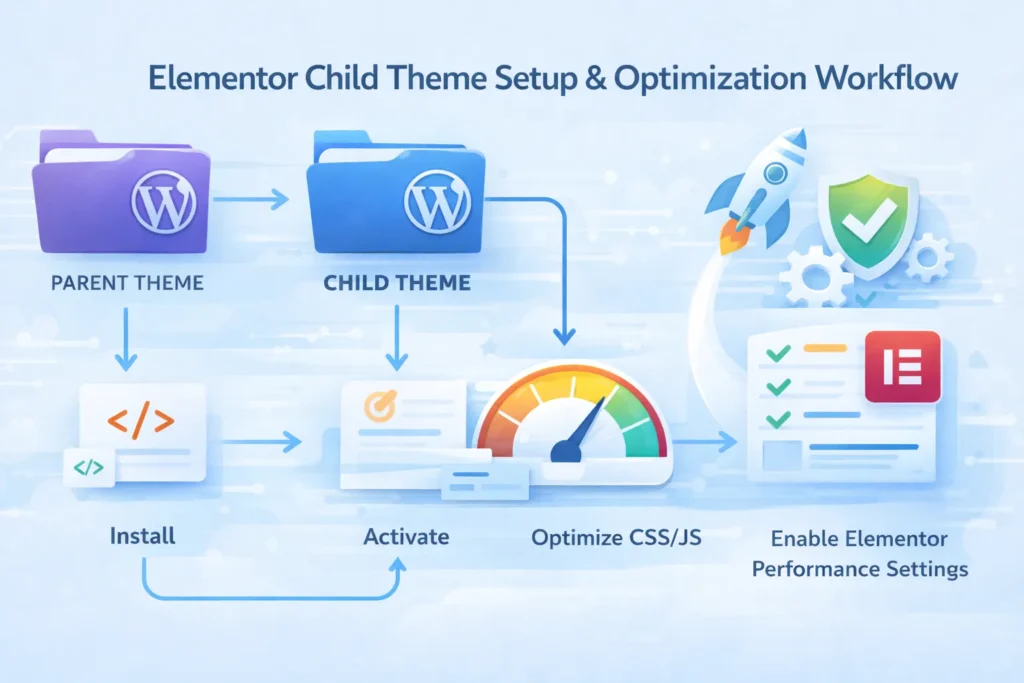
While the child theme helps, true power comes from combining theme performance with smart setup.
Enable Native Elementor Performance Features
Go to Elementor > Settings > Advanced:
- Switch on improved CSS loading
- Optimize DOM output
- Control global fonts
Elementor’s built‑in options reduce excess CSS and JS.
Cache Everything
Choose a caching plugin and configure:
- Page cache
- Browser cache
- GZIP compression
- Object cache
Database Cleanup
Remove post revisions, unused elements, and expired transients.
Use Fast Hosting
Even the best theme can’t fully overcome poor hosting.
- Choose hosts optimized for WordPress
- Look for NGINX, PHP 8+, latest MySQL/MariaDB
7. Common Issues & How to Fix Them
Despite best efforts, speed optimization can hit roadblocks.
Site Breaks After Dequeuing Assets
If you remove styles/scripts and things break:
- Re‑enable one at a time
- Test in staging
- Use browser dev tools to track missing dependencies
Child Theme Not Inheriting Styles
Check:
- Parent theme directory name must match the template in style.css
- Make sure the parent theme is installed
Fonts Not Loading
If fonts disappear:
- Confirm font host path
- Check Elementor font settings
- Ensure correct enqueue settings
8. Advanced Customizations with a Child Theme
Beyond performance, a child theme allows customizations you can’t do via UI.
Custom Shortcodes
Add reusable components:
add_shortcode( 'cta_button', function() {
 return '<a class="btn btn‑primary" href="#">Click Here</a>';
});
Custom Templates
You can override templates from plugins (where allowed) for deeper control.
Custom Post Types
Use the child theme to register CPTs:
function create_portfolio_cpt() {
 register_post_type( 'portfolio', [...]);
}
add_action( 'init', 'create_portfolio_cpt' );
9. SEO & Performance Monitoring
Optimization isn’t one‑time — it’s ongoing.
Tools to Monitor Performance
- Google PageSpeed Insights
- GTmetrix
- WebPageTest
- Chrome DevTools
Track Core Web Vitals
Watch:
- LCP (largest contentful paint)
- FID (first input delay)
- CLS (cumulative layout shift)
SEO Impact
Faster loading correlates with better search rankings and user engagement.
Conclusion
Using a child theme with Hello Elementor gives you:
Safe customization
Faster performance
Greater control
Better SEO potential
Clean and scalable Shopify Development
Whether you’re a beginner or an advanced developer, this guide gives you the steps, tips, and best practices to build a faster, more reliable WordPress site with Elementor.
Faqs
You don’t always need a child theme if you only use Elementor’s editor. But for custom code, templates, or advanced styling, a child theme is recommended.
It helps by allowing selective loading of CSS/JS, controlling fonts, and removing unnecessary parent theme assets without affecting Elementor layouts.
Yes. All your customizations remain in the child theme, so parent theme updates won’t overwrite your code or styling.
You can create it manually with a style.css and functions.php file, or use an online generator/plugin to simplify setup and activate it safely.
No. The child theme inherits all parent styles and templates. Your Elementor layouts remain intact while allowing safe customization.
Plugins like Autoptimize, WP Rocket, and LiteSpeed Cache optimize CSS, JS, and images without breaking the child theme setup.
Common issues include missing styles, fonts not loading, or broken scripts. Fix by verifying file paths, enqueues, and testing changes in a staging environment.